Boolean operations are one of the distinctive features of Unigraphics. In this UG tutorial we will see how to use the Boolean operation in Unigraphics and where you can use the UGS Boolean operation.
Unigraphics Boolean operations are very useful when you are designing press tools (like die or punch ). Typically for press tool design you have to design the tool from the pressed component itself. Means you will get the 3D model of the pressed component as input and you have to start designing the tool from that.
UG has three types Boolean operation: unite, subtract and intersect. In this UG tutorial we will take a rectangular block and a circular block for example and will see how the three types of Boolean operations can be performed on them.
Unite
- Go to insert→combine bodies→unite. You will get the unite dialogue box as below:

- Click the select body icon of the target section and select the rectangular block.
- Similarly click the select body icon of the tool section and select the circular block.
- Click Ok and you will see the result like below:

Subtract
- Go to insert→combine bodies→subtract. The subtract dialogue box will appear:
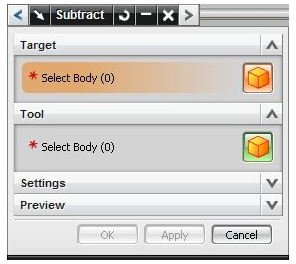
- Click the select body icon of the target section and select the rectangular block.
- Similarly click the select body icon of the tool section and select the circular block.
- Click Ok and you will see the result like below:
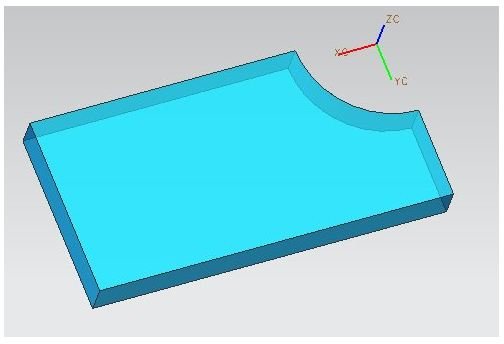
Intersect
- Go to insert→combine bodies→intersect. The intersect dialogue box will appear as below:
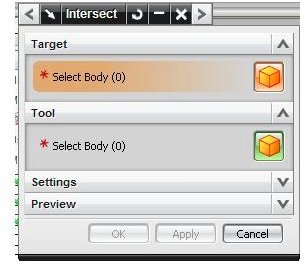
- Click the select body icon of the target section and select the rectangular block.
- Similarly, click the select body icon of the tool section and select the circular block.
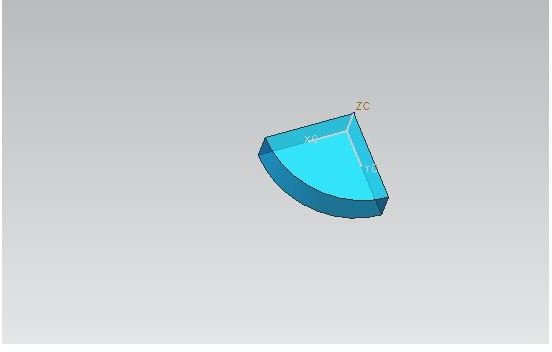
- Click ok and select the result like below:
Conclusion
Apart from Unigraphics, you can find the Boolean operation in Solid Edge also. Basic selection procedures remain same as we have discussed in this UG tutorial. Once you have thoroughly followed the Unigraphics tutorial, I recommend you to exchange the tool and target geometry and see the Boolean results.
Though output of the Boolean operations of our example looks simple and you may feel that the same result can be produce by using other UGS operation easily but in actual press tool design the Boolean operations are very handy for generating complicated tools.
Related Readings
**ProE Wildfire vs. UG NX 6 :**ProE as well as UG both are high end 3D CAD package. While comparing ProE vs. UG in this article we will discuss which one is strong in which area.