There are three basic types of datum curves in Unigraphics. This Unigraphics tutorial will let you know about the creation of these two basic types of UGS datum curves
Datum curves are very useful entities for any kind of 3D CAD packages. In ProE datum curves can even be generated from an equation . Unigraphics (UG or UGS) has many options for creating different types of datum curves . The two basic types of UGS datum curves and their creation procedures are shown below:
1. Line
For creating straight line curves go to
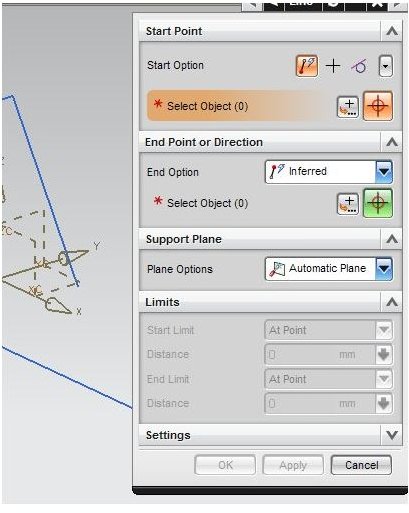
Insert → curve → line and you will get a window like below:
Now you have to select the start Point option. You have three start options:
- Inferred: This is the default option. With this option if you click on any object, UG will decide and select the best possible point of that object for starting the line.
- Point: By clicking this option, you can select any points of the already created geometry.
- Tangent: With this start option on, you have to select an already created curve (no straight line allowed).
Next, you have to select the End point or Direction option. You will see the three same options as of Start point options. Choose any one as per your requirement.
The next thing you have to notice here is the Limits section; from here you can control the length of the line.
If you expand the Settings field, you will have another check box named Associate, by checking which you can make the line associated with the start and end point geometry.
Now, Click OK, to see the line you have just created.
2. Arc/Circle
For creating the Arc/Circular curve go to
Insert → Curve → Arc/Circle and you will get the Arc/Circle dialogue box as below:
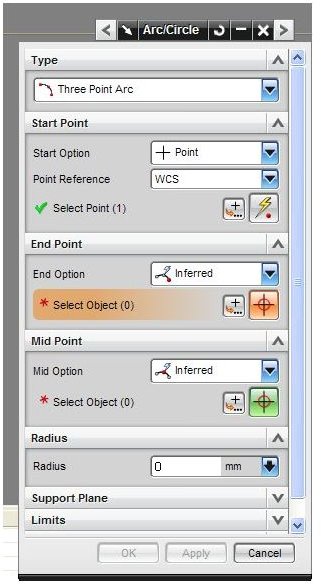
Two types of Arc/Circle can be created: Three point Arc and Arc/Circle from Center. For the three point Arc, you need to select the start, end, and the mid point. You have the Inferred, point, and tangent options available for the start point. Whereas, the end and the mid point has one additional option named Radius. By selecting the radius option you can specify the radius of the curve at the mid or end points.
In case you want to use the Arc/Circle from Center type, then you just have to select the Center point and the Through point. The Limits section will let you draw the portion of the curve.
Conclusion
Line and arc/circle are the two basic Unigraphics datum curves you will require most frequently during your UGS modeling work. This UG tutorial has covered the overall procedure for creating the UG datum curves; however you can explore more while self-practicing.